TABLE OF CONTENTS
Please check the downloaded data for completeness.
If you encounter any issues, we will be happy to assist you: support@smartblick.de
Order Data
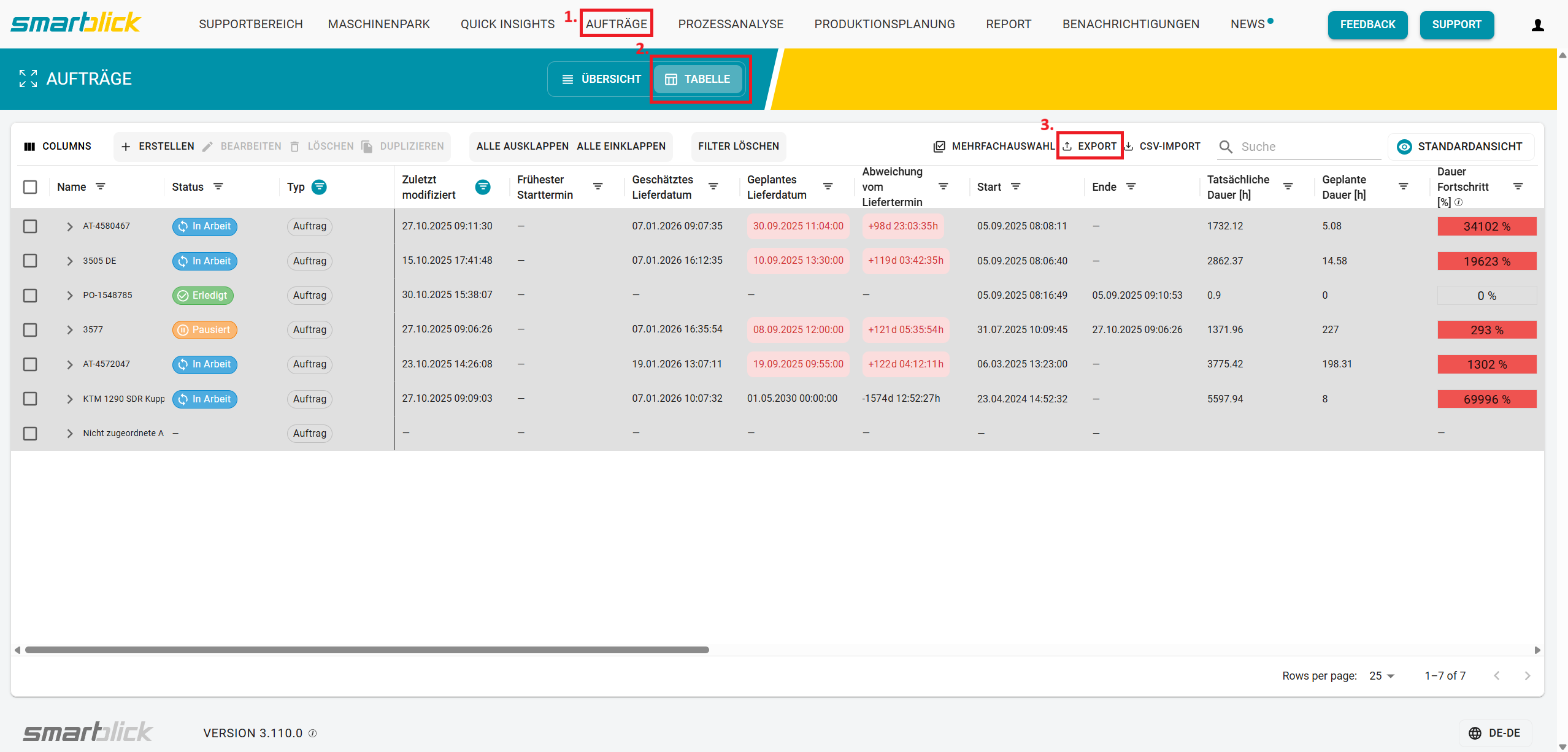
- Navigate to “Orders” in the main menu.
- Switch to the table view.
- Click “Export”.
- Select the desired format (.csv or Excel).
⚠️ Please note:
The “Last modified” field is filtered to 90 days by default.
Adjust this filter to export all data.
Process Data & Comments
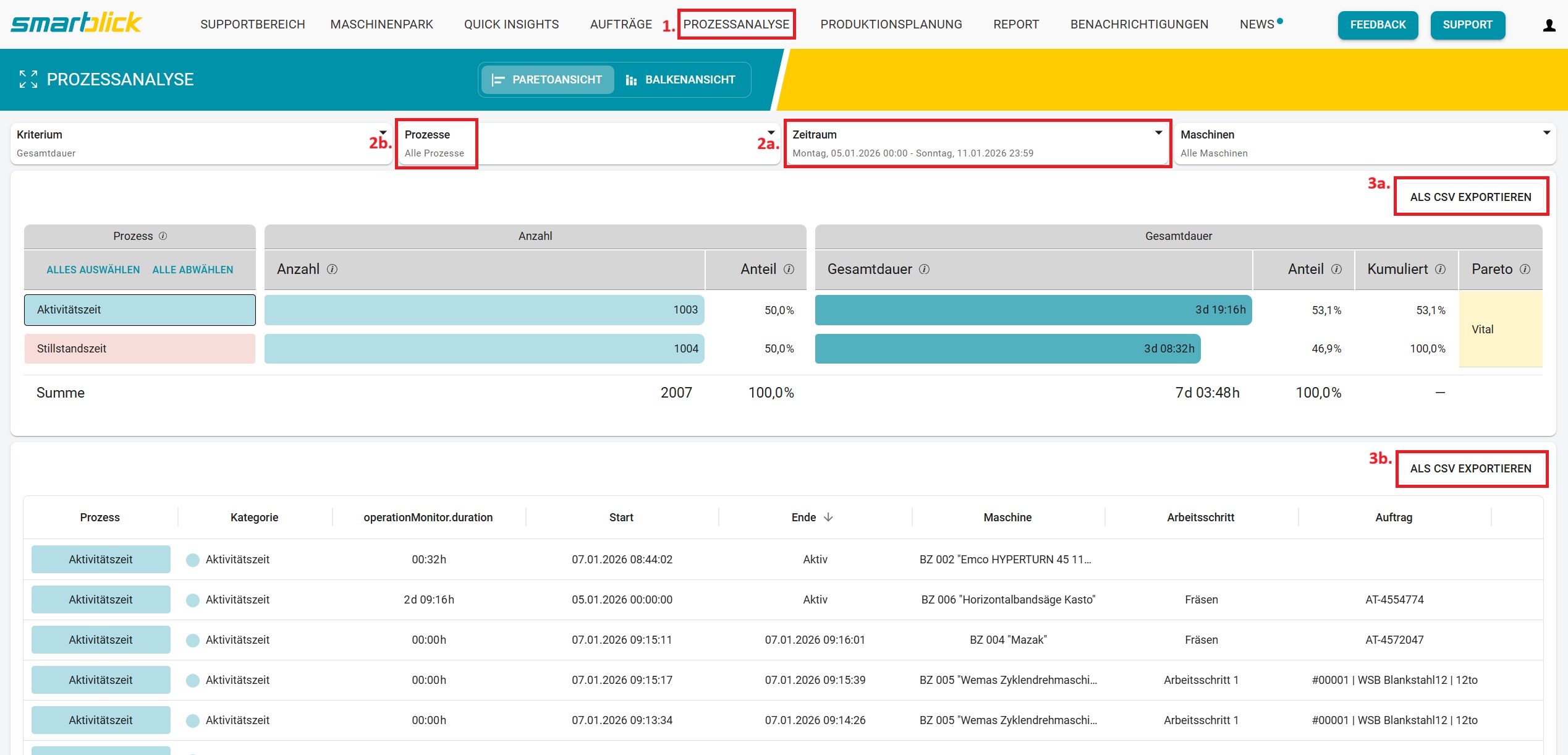
- Navigate to “Process Analysis” in the main menu.
- Select the relevant processes (2a.) and the desired time period (2b.).
- You can export either the Pareto chart (3a.) or the raw data (3b.).
For further analysis outside of smartblick, we recommend exporting the raw data, as only this export includes the comments.
Efficiency Report
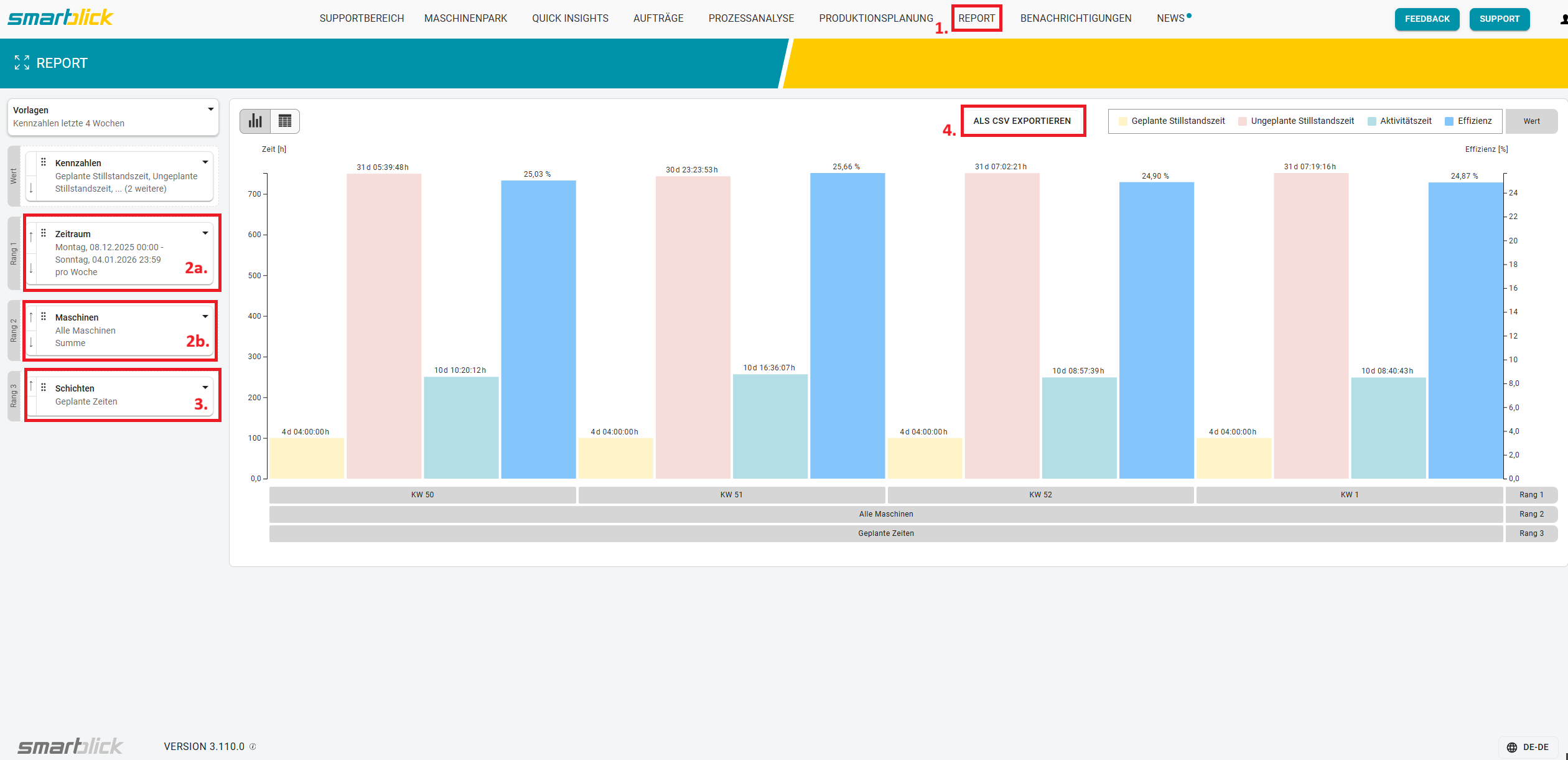
- Navigate to “Report” in the main menu.
- Select the desired time period (2a.) and the machines (2b.) for which you want to generate the report.
- If available, please select the shifts.
- Click EXPORT CSV.
A detailed report will then be generated and automatically downloaded once it is ready.
Depending on the size of your machine park, this may take a few seconds.
Was this article helpful?
That’s Great!
Thank you for your feedback
Sorry! We couldn't be helpful
Thank you for your feedback
Feedback sent
We appreciate your effort and will try to fix the article